FIFINE AM8 USB vs XLR: Which Setup Should You Use?
The FIFINE AM8 is easy to start with over USB, but its XLR path was the clear winner in my setup. Here’s how the connections, gain, RGB, and mounting actually worked.
Affiliate disclosure: As an Amazon Associate I earn from qualifying purchases. This article may contain affiliate links, which means I may earn a commission at no extra cost to you.
The FIFINE AM8 USB vs XLR decision is refreshingly simple in my setup: USB was the fast way to get recording at a computer, while XLR through my soundboard was the path I preferred once I compared them. The reason this microphone stands out is that I did not have to choose one connection type when buying it. I could begin with the included USB cable, then move to XLR when I wanted to use my soundboard controls.
That makes the AM8 a practical option for a streamer, gamer, YouTuber, or new podcaster building a desk over time. It is not just a microphone with two ports for the sake of it. The two connections changed how I used the mic, how I controlled its level, and whether its RGB lighting was active. Placement mattered, too: I got the more podcast-like sound I wanted by bringing the microphone close and speaking into its front/end.
Who should choose the FIFINE AM8?
I think the AM8 makes the most sense for someone who wants to start simply but does not want to replace a USB-only microphone as their setup grows. With USB, I connected the mic to my computer, added it as an input, and monitored it through OBS. That is the low-friction route for a first stream, a gaming setup, or straightforward computer recording.
The XLR output is the reason to consider this particular model rather than treating it as an ordinary USB microphone. I connected it to my soundboard and used that equipment for level and tonal adjustments. If you already own a soundboard or audio interface, or expect to add one later, the AM8 gives you a route into that workflow without abandoning the same microphone.
The visual side also has a clear audience. I liked the sharp-looking body and its cool visual vibe, while the USB-powered color cycling is especially suited to a mic that appears on camera. If you do not care about lighting, it does not get in the way of the basic USB and XLR choice. If your desk setup is part of your content, though, the RGB is a meaningful extra rather than an invisible feature.
This is less compelling if you need a microphone that you can constantly reposition while live. I heard obvious handling noise when I touched it on both the desktop stand and my arm. It worked best once I set its position and left it alone.
FIFINE AM8 USB vs XLR: what changed in my setup
I began with USB because it is the most direct starting point. The AM8 came with a long USB-to-USB-C cable. The microphone end is USB-C, and the computer end provides both USB-A and USB-C connection options. That is a useful detail for people using newer computers as well as machines that still have the familiar USB-A ports. I did not need to find a separate adapter just to make the included cable fit my computer setup.
When I plugged it in over USB, the microphone powered on and the lighting came alive. It appeared as an input on my computer, and I added it in OBS so I could hear and monitor it. For the person who wants to plug in a microphone, select it in recording or streaming software, and begin working, that was the uncomplicated path.
I then connected the AM8 by XLR to my soundboard. This was the setup I preferred for sound. In my direct comparison between the two live paths, I thought the XLR connection sounded better than USB. I was also able to use the soundboard for gain and tonal adjustments, including its lows, mids, and highs controls. That flexibility is a major practical difference if a soundboard is already central to your recording desk.
That preference is specific to my soundboard and my setup, not a claim that an XLR cable automatically makes the AM8 sound the same way everywhere. USB remained useful and easy. The real buyer choice is whether simplicity is the priority right now or whether you want to work through external audio gear. The nice part is that the AM8 does not force a permanent decision.
One connection detail is important: its onboard gain control worked for me in USB mode, but it did not change the level in my XLR setup. I used the soundboard to control the XLR level instead. That is worth knowing before you start turning the mic’s control and wondering why nothing is changing. Once I used XLR, the soundboard became the place for those adjustments.
USB is the fast path for a computer desk
USB was not merely a backup option in my testing. It was the easiest way to get the AM8 operating. The computer recognized it as an input, I could bring it into OBS, and the lighting immediately gave me visual confirmation that the microphone had power. That makes it a sensible first connection for anyone whose immediate goal is recording, streaming, voice chat, or learning microphone placement at a laptop or desktop.
At roughly three feet from the mic, the middle gain setting was usable. That result matters because people often put a microphone at the far side of a desk and expect it to sound like it is on a boom arm inches from their mouth. At that distance, I could get a workable level, but moving closer gave the sound a fuller, more podcast-like character.
At close range, 100% microphone gain was too high for me. I would not start by maxing out the gain and trying to solve placement afterward. Get the microphone closer first, point its front/end toward your mouth, listen to your recording level, and then make smaller gain changes. The AM8 rewarded that basic setup choice more than an across-the-desk position.
I also found the direct USB route useful for understanding what the mic was doing before bringing external gear into the chain. If you are new to microphones, there is value in beginning with one clear connection, confirming the input in your software, and hearing the result. Then, if you later add an interface or soundboard, you already know the microphone’s position and gain behavior.
Why I preferred XLR through my soundboard
When I switched to XLR, I immediately liked what I heard. I called it a good-sounding podcast mic through the soundboard, and I was impressed with that path overall. For me, the difference was not just the connection itself; it was having the soundboard in the workflow, where I could work with gain and tonal controls rather than relying on the microphone’s USB control.
The AM8 needs to be fairly close for the level and presence I wanted. That is where an arm becomes valuable. With the mic positioned near my mouth and aimed correctly, the XLR setup was the one I would choose for a more established podcasting or recording desk. Someone who already uses a soundboard should especially appreciate that the AM8 can join that setup instead of being limited to direct computer USB.
Do not buy it expecting every on-mic feature to behave identically with XLR. My onboard gain control did not affect the XLR level, and FIFINE says RGB, mute, and function keys are inactive in XLR mode. That is not a deal-breaker when external controls are the reason for choosing XLR, but it does mean you should plan to use your interface or soundboard as the control center.
FIFINE says the standard package does not include an XLR cable, although bundle contents may vary. If the XLR path is the reason you are buying the AM8, check what is in the specific package and make sure an appropriate cable is ready before setup day.
Placement matters: speak into the front/end
The AM8 is an end-addressed microphone in the way I used it. I tested it from the top and sides, then found that speaking directly into the front/end was the useful orientation. Talking across the side is not the position I would recommend based on my checks.
This is one of the most useful things to know before judging its sound. The microphone can look a little different from a traditional side-address studio mic, and its controls may tempt you to orient it toward yourself based on convenience alone. Instead, arrange the body so you can speak into the end while still reaching the controls you need. I found that direct orientation and closer placement did more for the sound I wanted than simply turning gain higher.
The AM8 already has a soft built-in windsock or pop-filter-style cover. I liked having that integrated piece rather than another accessory to attach, misplace, or fit around the microphone. I did not test detailed plosive rejection, noisy-room performance, or background-noise rejection, so I cannot make a broader claim about those situations. What I can say is that the built-in cover is there and the intended speaking direction was clear in my setup.
Desktop stand, scissor arm, and handling noise
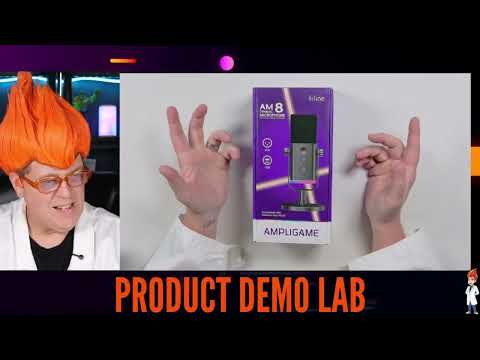
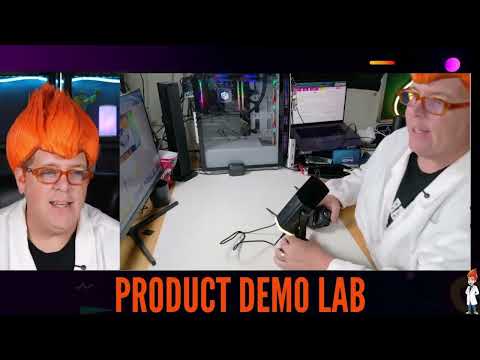
In the box, I found a manual, the desktop stand, and the included USB cable. The desktop stand had a solid rubber base, which gave it a reassuring feel for a basic desk setup. It is a sensible way to start if you do not own an arm yet.
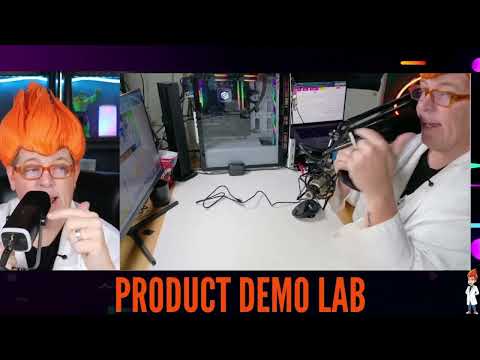
I also mounted the AM8 on my Heil PL2T scissor arm. It fit the arm’s typical microphone mounting connection, so moving from the desktop stand to the arm was straightforward. For my preferred close, end-addressed position, an arm makes a lot of sense. It can bring the microphone to you rather than requiring you to lean toward a mic sitting on the desk.
There is a meaningful caveat here: I heard handling noise whenever I touched the microphone. I noticed it on the desktop stand and again while it was mounted on the arm. That means the best habit is to position it before recording or going live, then keep your hands off the microphone. Avoid grabbing it, readjusting it mid-sentence, or treating it like a handheld mic while recording, because those sounds came through in my setup.
That does not erase the benefit of the arm. In fact, a stable arm can help you establish the close placement I preferred. It just changes the workflow: set the height, angle, and distance in advance, then let the AM8 stay put.
RGB lighting works through USB power
The RGB lighting is a real part of the AM8’s appeal if the microphone will be visible on camera. With USB connected, tapping the light control moved through many color choices, including a rainbow-style look. I found it fun, and it fits the streaming, gaming, and YouTube audience naturally.
With XLR alone in my setup, the lighting did not turn on. USB is what powered it. I was able to connect USB and XLR at the same time, though, which let me use the XLR audio path while keeping the colorful lighting active. That combination is a useful option for someone who wants a soundboard-based setup without losing the on-camera look.
There is a small workflow point with simultaneous connections: make sure your recording or streaming software is using the input you actually intend to use. Since both paths can be connected, the practical goal is to select the XLR route when that is the sound you want, rather than accidentally monitoring the USB source. The microphone gives you flexibility, but the connection you select in your audio setup still matters.
What the AM8 gives you before an upgrade
The strongest case for the AM8 is flexibility across stages of a setup. A USB-only microphone is convenient, but it can leave you needing a different mic if you later want an XLR soundboard or interface workflow. An XLR-only microphone can be great for an established audio chain, but it asks more of a new user on day one. The AM8 gives you a direct computer route and an external-gear route in one product.
- Choose USB first if you want the quickest computer connection, on-mic gain adjustment in my setup, and active RGB lighting.
- Choose XLR if you already use a soundboard or interface and want that gear to handle level and tonal adjustments. This was my preferred sound path.
- Use USB plus XLR if you want XLR audio while keeping the AM8’s RGB lighting powered for camera-facing content.
FIFINE identifies the AM8 as a dynamic cardioid microphone with USB and XLR connectivity and lists a 50 Hz–16 kHz frequency response. Those are manufacturer specifications rather than measurements I performed. I also identified a headphone monitoring connection during setup, but I did not test that monitoring function in enough detail to rate it.
Should you buy the FIFINE AM8 for USB or XLR?
Yes, if you value the ability to begin with USB and move into XLR later. I liked how quickly it became a computer input over USB, appreciated the included cable’s USB-A and USB-C computer options, and found the RGB lighting genuinely enjoyable for an on-camera desk. The desktop stand had a solid rubber base, and the microphone fit my scissor arm when I wanted closer placement.
My strongest recommendation is for the buyer who expects to use XLR eventually. I personally preferred the AM8 through my soundboard, where I could handle gain and tonal adjustments externally. That is the differentiated value here: it is a USB-friendly starter mic that did not leave me stuck in a USB-only workflow.
Set expectations correctly and it is easy to like. Speak into the front/end, bring it close rather than relying on maximum gain, and avoid touching it during recording because handling noise was noticeable. If lighting matters while you use XLR, leave USB connected for power. Those are simple setup realities, and once I worked within them, the AM8 felt like a versatile microphone for a growing content desk.
FIFINE AM8 USB vs XLR FAQ
Does the FIFINE AM8 work through USB and XLR?
Yes. I used it directly with a computer over USB-C and through my soundboard over XLR. I also connected both at once, using USB for lighting power while using the XLR audio path.
Does the FIFINE AM8 sound better on USB or XLR?
I personally preferred the XLR sound through my soundboard. That preference reflects my own setup and comparison. USB was still quick to configure, usable for computer recording, and the simpler connection for getting started.
Does the AM8’s gain knob work with XLR?
Not in my XLR soundboard setup. The onboard gain control changed the level in USB use, but I controlled XLR gain from the soundboard instead.
Can the FIFINE AM8 RGB lights work with XLR?
Not from an XLR-only connection in my setup. The lights came on with USB power. I could keep USB connected for lighting while using XLR for audio.
Which side of the FIFINE AM8 should you speak into?
Speak directly into the microphone’s front/end. After checking the top and sides, I found the front/end to be the intended useful speaking orientation.
Can the FIFINE AM8 mount on a boom arm?
Yes. I mounted it on my Heil PL2T scissor arm, where it fit the typical microphone mounting connection. An arm is especially useful for getting the mic close while keeping its front/end aimed toward your mouth.
Does the AM8 pick up handling noise?
Yes, I heard noticeable handling noise when I touched the microphone on both its desktop stand and the scissor arm. I would set its position before recording and avoid touching it while live.
Buy the FIFINE AM8 if you want an easy USB starter mic that can move into an XLR setup later. USB is quick and useful, but I preferred its sound through my soundboard over XLR.
As an Amazon Associate I earn from qualifying purchases.
| Connection options | USB-C or XLR |
|---|---|
| Best setup path | USB now, XLR later |
| My preferred audio path | XLR through a soundboard |
| Lighting | USB-powered RGB color cycling |
| Mounting | Fits standard-style scissor arms |
| Included cable | USB-C mic end with USB-A/USB-C computer options |
+ Pros
- USB-C and XLR connections provide a useful upgrade path
- Included cable supports USB-A or USB-C at the computer end
- Quick USB setup and computer input recognition
- XLR was my preferred sound path through a soundboard
- RGB color cycling adds a strong on-camera look
- Fits a standard-style scissor arm mount
- Solid rubber base on the included desktop stand
− Cons
- Handling noise is noticeable when the microphone is touched
- Maximum onboard gain was excessive at close range
- RGB lighting does not run from XLR-only power
Specs
| Spec | Detail |
|---|---|
| Microphone type | Dynamic cardioid (manufacturer claim) |
| Connections | USB-C and XLR |
| Frequency response | 50 Hz–16 kHz (manufacturer claim) |
| Lighting | RGB control in USB-powered use |
| Included items observed | Desktop stand, manual, USB-to-USB-C cable |
| On-mic controls observed | Gain control, headphone monitoring connection, light control |
| Mount compatibility observed | Typical scissor-arm microphone connection |
Scorecard
USB and XLR cover beginner and upgraded workflows.
Quick computer setup with a versatile included cable.
I preferred its sound through my soundboard.
Boom-arm compatible, but needs close end-addressed use.
Touching the mic creates noticeable noise.
Sharp-looking body with fun USB-powered RGB.
As an Amazon Associate I earn from qualifying purchases.