OBSBOT Tiny 2 Lite vs Canon M50: Is It Close Enough?
The OBSBOT Tiny 2 Lite came surprisingly close to my Canon EOS M50 in a live-streaming comparison, then added tracking and hands-free framing control.
Affiliate disclosure: As an Amazon Associate I earn from qualifying purchases. This article may contain affiliate links, which means I may earn a commission at no extra cost to you.
The OBSBOT Tiny 2 Lite made a strong case for itself in my setup. In this OBSBOT Tiny 2 Lite vs Canon M50 comparison, its image looked very close to the Canon EOS M50 I have used for livestreams for quite some time. Then it did something the Canon does not do on its own: it followed me around the room.
That combination is the reason this is more interesting than a basic webcam comparison. I was not simply looking for a camera that could sit on a monitor and make a static talking-head shot. I wanted to see whether a compact USB webcam could deliver a credible live image beside my established mirrorless-camera feed while also taking over some of the framing work when I moved. In the setup I used, the Tiny 2 Lite came much closer to that goal than I expected.
For solo streamers who move while presenting, the OBSBOT Tiny 2 Lite is a compelling alternative to a more involved mirrorless-camera setup. Its image looked remarkably close to my Canon EOS M50, while the motorized tracking and gesture controls made framing far easier.
As an Amazon Associate I earn from qualifying purchases.
A mirrorless camera can still make sense, especially if you already own one and have it dialed in. My Canon EOS M50 has been part of my livestream setup for a long time. But a tracking webcam solves a different problem: it removes much of the framing busywork for a solo presenter. Move to the side, step back, show something at your desk, then come back on camera. The Tiny 2 Lite can react with its motorized head rather than making me stop and readjust a fixed webcam.
That distinction matters if you handle every part of a stream yourself. When there is no second person behind the camera, a camera that can keep a presenter in frame changes the flow of a presentation. It lets the shot respond to what I am doing instead of requiring me to plan every movement around one fixed rectangle. The trade-off is that automation has a character of its own, and the tracking behavior you select affects how active the reframing feels.
| Best for | Solo streamers and presenters who move on camera |
|---|---|
| Camera type | Motorized 4K tracking webcam |
| Key advantage | Automatic subject tracking with adjustable framing behaviors |
| Control options | Gimbal positioning plus hand gestures |
| Connection | USB to computer, per OBSBOT |
OBSBOT Tiny 2 Lite vs Canon M50: the image gap was small
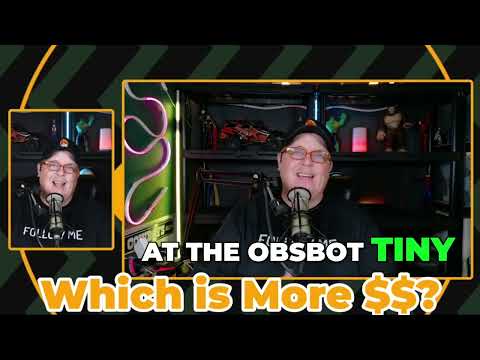
I ran the OBSBOT Tiny 2 Lite live next to my Canon EOS M50. The OBSBOT occupied the larger part of my screen, with the Canon feed on the left. My takeaway was simple: the webcam looked very similar and very close to the M50 in that livestreaming setup.
That surprised me. The Canon is the more traditional camera route, and I described it as a roughly $600 camera at the time. I also said the OBSBOT was under $200 at that time. Prices move, so do not take those as today’s pricing. The useful part of that comparison is not a current price claim; it is how impressed I was that this much smaller webcam could sit beside the camera I normally use and still look close enough that the difference did not dominate the live view.
For a buyer deciding between these categories, “close” is the important word. I am not saying that a webcam and a mirrorless camera are identical products or that the result will match in every room. I am saying that, in the live setup I used, the Tiny 2 Lite did not have the look of a typical basic webcam trying to punch above its weight. It looked like a credible stream camera next to my M50, which is a meaningful result when convenience and automated framing are part of the decision.
My visual comparison was also practical rather than laboratory-style. I was judging the feeds as they appeared in a live-streaming context, not measuring color, dynamic range, or resolving power under controlled conditions. I did not run a dedicated low-light, HDR, autofocus, or long-form recording comparison. If one of those specific areas is the deciding factor for your setup, I cannot make a conclusion about it from this use. For the live image I saw, though, the Tiny 2 Lite cleared the much more relevant hurdle: I would not feel as though I had to apologize for switching from my established Canon feed to this webcam.
That is also why I would not reduce the decision to sensor size or camera category alone. A mirrorless camera may offer a workflow and capabilities that matter to you, particularly if you already have it configured. The Tiny 2 Lite’s appeal is that it paired the close visual result I saw with a direct USB webcam format and a moving head that can change composition without a separate operator. For a solo stream, those are practical benefits, not just a spec-sheet comparison.
The tracking is the reason to buy this webcam
Image quality gets the Tiny 2 Lite into the conversation. Tracking is what separates it from a normal webcam.
With normal tracking active, I moved around and the camera followed me. That is immediately useful if your content involves standing, presenting, moving between a whiteboard and a desk, or simply not sitting frozen in one exact spot for an entire stream. A fixed camera gives you one composition. This gives you a camera that can follow the presenter.
I switched through several tracking behaviors during use:
- Normal tracking for a standard follow shot.
- Close-up tracking for tighter face framing.
- Upper-body tracking when more of the presenter belongs in the shot.
- Motion tracking for a more responsive reaction to movement.
That range matters because “tracking” is not one fixed look. A standard follow shot and a tight face shot create different moods for an audience. Upper-body framing can be the better fit when your hands, posture, or the object you are holding is part of the explanation. Motion tracking offers another response style. I could choose the behavior that made the most sense for the shot instead of accepting one automatic crop all the time.
For me, the useful part was not merely watching the head turn. It was seeing that movement could become a normal part of a livestream. If I shifted position, the camera shifted with me. That is valuable for a teacher explaining something standing up, a presenter who does not want to remain locked in a chair, or a product-focused stream where moving between a face shot and an area of the room is part of the format. It also has value for recorded video when I want that same freedom without continually checking whether I am still centered.
The one behavior I would watch is close-up tracking. During my demonstration, it reacted almost a little too fast while reframing. It was not a deal-breaker, and fast response can be helpful when I move, but it is worth knowing if you prefer slow, subtle camera moves. I would choose a tracking behavior deliberately rather than assuming the closest framing is automatically the best one for every stream.
I also would not overextend this result beyond what I used. I did not test fast movement, multiple people, occlusions, or a large-room setup, so I cannot say how it will behave in those situations. What I did use was clear: it followed me while I moved, and I was able to switch among the normal, close-up, upper-body, and motion choices. That is enough to make the Tiny 2 Lite much more flexible than a fixed webcam for the presenter-led work I had in mind.

Desk shots are easy, but fixed framing needs tracking off
The motorized gimbal was also practical for something less flashy: pointing the camera at my desk. I used the gimbal control to aim down temporarily, which is handy for showing a product, notes, a keyboard, or a work surface during a live session.
This is a meaningful use case because a stream is rarely only a face shot. Sometimes the audience needs to see the item being discussed, a work area, or what is happening on the desk. With a fixed webcam, that transition usually means physically moving the camera, changing its mount, or accepting a compromised wide framing from the start. Here, I could use the gimbal to redirect the camera temporarily and then return to a presenter view.
There is a simple rule to understand. If tracking is on, the camera wants to find my face again. If I want it to stay pointed at a manually selected area, I turn tracking off first. With tracking disabled, I positioned the camera where I wanted and it remained there. When I turned tracking back on, it came back to my face.
That is not really a flaw; it is how a face-tracking camera should behave. Still, it affects how I would use it. Tracking on makes sense for a presenter-led stream where I am the subject. Tracking off makes sense for a deliberate, fixed desk or product angle. Understanding that handoff avoids expecting one mode to do two opposing jobs at once.
For buyers who regularly demonstrate physical objects, this may be more useful than the headline tracking feature. The gimbal gives me a way to change the subject of the shot without treating the camera as a permanently fixed monitor accessory. Once I have aimed at the desk and disabled tracking, I can hold that view rather than having the camera decide that my face should again be the priority. Then, when the explanation returns to me, enabling tracking restores the presenter-focused behavior.
Gesture controls are more useful than they sound
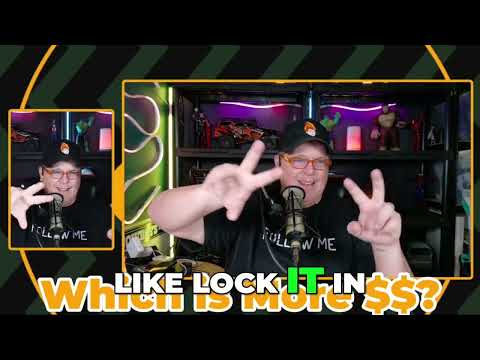
Gesture control can sound like a feature added just to make a product page more exciting. Here, I found it legitimately useful. I used L-shaped hand gestures to trigger much tighter framing on my face. I also used gestures to zoom in and zoom out while the camera continued tracking me.
That hands-free control is valuable when I am live. I may not want to reach for software controls, click through menus, or touch the camera while talking. A gesture lets me tighten the shot for emphasis, pull back for a wider view, and keep moving naturally. It is especially relevant for a one-person setup because every control I can handle without interrupting the presentation keeps the attention on the content rather than the production work happening around it.
The tighter framing was not just a static crop. Even while I moved around, the camera continued to track me. That pairing is the feature’s real value: I could ask for a more intimate face shot and still retain the movement freedom that makes a tracking webcam appealing in the first place. A fixed close crop would be less useful if it immediately became easy to leave the frame.
OBSBOT calls this Gesture Control 2.0 and lists additional advanced functions through its computer software. I focused on the framing and zoom gestures I actually used. Those worked as a practical shortcut rather than a gimmick. I did not explore every possible gesture or every software function, so I would check the current documentation if a particular command is essential to your workflow.
+ Pros
- Image quality looked very close to my Canon EOS M50 in my livestreaming setup.
- Automatic tracking followed me as I moved around.
- Motorized gimbal made switching from face framing to a desk view quick.
- Gesture controls let me tighten framing and zoom without reaching for controls.
- Multiple tracking behaviors make it more flexible than a fixed webcam.
− Cons
- Close-up tracking reacted almost a little too quickly during my demonstration.
Who should choose the Tiny 2 Lite?
I would look at the OBSBOT Tiny 2 Lite 4K Webcam if you are a solo livestreamer, instructor, presenter, or creator who moves while you talk. It makes the most sense for someone who wants a more active camera shot without building a complicated mirrorless-camera workflow.
It is also a solid fit if your stream regularly shifts between you and a desk. The gimbal gives you a quick way to reframe, while disabling tracking lets you hold a product-view angle in place. The gesture controls add another way to change framing while remaining on camera, which is useful when a stream includes both close explanation and wider demonstrations.
The Tiny 2 Lite is particularly compelling if you are comparing it against a mirrorless setup because you want less overhead, not because you expect every camera to serve the same purpose. My Canon M50 remains a familiar camera in my live workflow. What impressed me here was that the OBSBOT looked very close in the comparison I ran while bringing tracking, gimbal movement, and gesture-based framing into one compact webcam. For the right type of stream, those are advantages that can matter more than pursuing a traditional camera setup.
If you sit in exactly the same chair, never change framing, and only need a basic static shot, a motorized tracking webcam may be more camera than you need. A conventional webcam can be the simpler choice in that narrow use case. But if you have ever leaned out of frame while demonstrating something, stood up to make a point, or wanted to show your desk without breaking the flow of a stream, the benefit of this design is easy to understand.
I would also keep expectations tied to the use I actually demonstrated. I did not assess the built-in microphone, low-light performance, HDR, specific output settings, streaming-software compatibility, or long-term reliability. Those may be important to a particular buyer, but they were not part of this comparison. The strongest reason to consider the Tiny 2 Lite is the combination I did use: a live image that looked close to my M50, automatic tracking, controllable framing behavior, manual gimbal positioning, and gesture-based zoom and close framing.
What the official specs add
OBSBOT identifies the Tiny 2 Lite as an AI-powered 4K PTZ webcam with a 1/2-inch CMOS sensor, automatic tracking and zoom functions, gesture control, presets, and a built-in microphone. The company lists support for up to 4K at 30 fps and 1080p at 60 fps, along with USB computer connectivity and a two-axis gimbal.
Those listed specifications help explain the product category, but my recommendation comes from the functions I used rather than from the numbers alone. The two-axis motorized gimbal was relevant because I used it to move from my face to the desk. The tracking and auto-framing features were relevant because I used them while moving. The USB connection matters for its role as a computer webcam, but I did not test compatibility with a specific streaming application.
I did not evaluate the built-in microphone, low-light performance, HDR, specific output settings, or compatibility with any particular streaming software in this comparison. If one of those items is your deciding factor, check the current documentation for your computer and workflow. Likewise, the under-$200 figure I mentioned reflects the price at the time I recorded the comparison rather than a current street price.
Specs
| Spec | Detail |
|---|---|
| Product | OBSBOT Tiny 2 Lite 4K Webcam |
| Maximum listed video mode | 4K at 30 fps |
| Listed high-frame-rate mode | 1080p at 60 fps |
| Sensor | 1/2-inch CMOS sensor, per OBSBOT |
| Gimbal | Two-axis motorized gimbal, per OBSBOT |
| Tracking modes used | Normal, close-up, upper-body, and motion tracking |
| Controls used | Manual gimbal control and gesture-based framing/zoom |
| Computer connection | USB, per OBSBOT |
| Built-in audio | Microphone listed by OBSBOT |
Scorecard
Looked very close to my Canon EOS M50 in my livestreaming setup.
Followed me well with several framing behaviors available.
Gimbal and gesture controls make quick changes simple.
Works for presenter movement, close framing, and desk views.
Strong capability for the under-$200 price I mentioned at the time.
OBSBOT Tiny 2 Lite vs Canon M50 FAQ
Is the OBSBOT Tiny 2 Lite as good as a Canon M50?
In my livestreaming comparison, the Tiny 2 Lite image looked very close to my Canon EOS M50. They are different types of cameras, and I did not run a controlled comparison across every condition. The OBSBOT added automatic tracking and motorized reframing, which made it especially useful for a solo presenter.
Can the OBSBOT Tiny 2 Lite follow you around a room?
Yes. I used normal tracking while moving around, and the camera followed me. I also switched among close-up, upper-body, and motion tracking behaviors. I did not test it with fast movement, multiple people, obstructions, or a larger room, so I cannot make conclusions about those situations.
Can I use the Tiny 2 Lite to show my desk?
Yes. I used the gimbal control to point it down at my desk. For a fixed desk view, turn tracking off so the camera does not return to your face. When I re-enabled tracking, it returned to tracking my face.
Does the OBSBOT Tiny 2 Lite support gesture controls?
Yes. I used L-shaped hand gestures to create tighter face framing and used gestures to zoom in and out while the camera continued tracking me. OBSBOT lists additional advanced functions through its software, but I focused on the framing and zoom controls I used.
Is the OBSBOT Tiny 2 Lite good for livestreaming?
It is a particularly good match for solo livestreamers who move while presenting. The combination of close-to-mirrorless image quality in my setup, automated tracking, gesture-based framing, and quick gimbal repositioning is the main reason. It is less essential if your streams always use one static seated composition.
What video modes does OBSBOT list for the Tiny 2 Lite?
OBSBOT lists support for up to 4K at 30 fps and 1080p at 60 fps. I did not independently test those modes or specific output settings in this comparison.
Final recommendation
The OBSBOT Tiny 2 Lite is not just a webcam with a nicer sensor. The motorized tracking changes how I can work on camera. In my setup, it delivered an image that came very close to my Canon EOS M50 and added the freedom to move without constantly managing framing.
The comparison made the buying decision clearer for me. If image quality alone is your only concern, camera choice involves more variables than I tested here. But if your goal is a capable live-streaming camera that also reduces the mechanical work of staying framed, the Tiny 2 Lite brings a useful combination of qualities together. I could select different tracking behaviors, move the gimbal to the desk, lock a manual angle by disabling tracking, and use gestures for a tighter or wider view.
If you want a fixed talking-head camera, there are simpler options. If you want a compact camera that can follow a solo presentation, zoom with gestures, and swing down to a desk when needed, this is an easy one to put on the shortlist. The close result beside my Canon M50 is what makes that convenience feel credible rather than like a compromise.
As an Amazon Associate I earn from qualifying purchases.